
Download FreeSnap – Free Keyboard Shortcut Tool for Windows & Mac | Efficient Window Management Software
In today’s fast-paced digital work environment, every second counts. If you're still relying on your mouse to resize, move, or switch between windows, you're likely losing valuable time and efficiency. Enter FreeSnap — a powerful, free, and secure keyboard-driven tool designed to revolutionize how you manage your workspace.
With just a few keystrokes, FreeSnap allows you to control your active windows with precision, eliminating the need to constantly switch between keyboard and mouse. Whether you're multitasking between documents, coding, designing, or presenting, FreeSnap ensures seamless navigation and maximum productivity. The software is lightweight, easy to install, and compatible with both Windows and Mac systems, making it a must-have for professionals, students, and remote workers alike.
By integrating with your existing workflow, FreeSnap enhances the native Alt-Tab functionality and adds new levels of control. Best of all? It’s completely free with no hidden costs or ads.
If you're looking for a reliable way to streamline your desktop experience, FreeSnap delivers exactly what it promises — powerful window management through keyboard shortcuts.
Key Features of FreeSnap: Smart Window Control at Your Fingertips
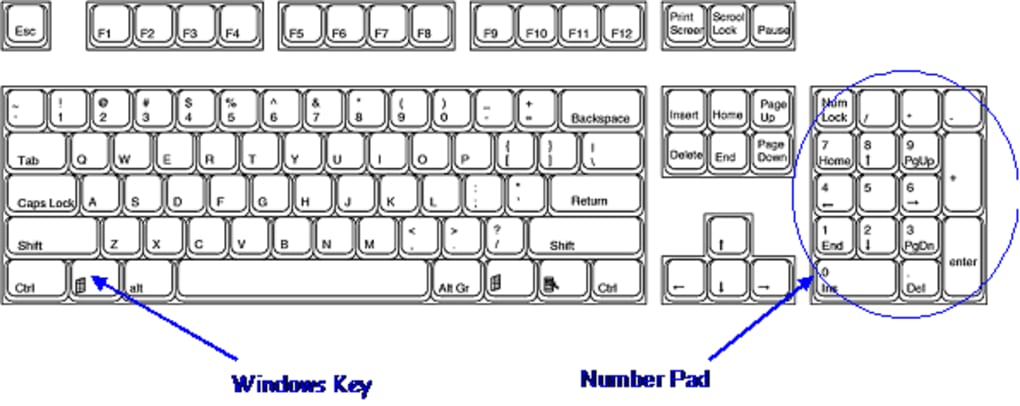
FreeSnap stands out in the crowded category of productivity tools by offering a clean, intuitive, and highly functional interface focused on one core goal: enhancing window management through keyboard shortcuts. One of its most powerful features is the ability to use the Windows key + Number Pad keys (1-9) to instantly resize and reposition active windows. For example, pressing Windows + 1 snaps the current window to the top-left quadrant, while Windows + 5 centers it on the screen.
This system is incredibly efficient, especially for users working with dual or triple monitors. The tool also supports Alt + Tab integration, allowing you to cycle through open applications with enhanced visual feedback and smoother transitions. Another standout feature is the customizable hotkey system — users can define their own shortcut combinations to suit their workflow, ensuring maximum personalization.
FreeSnap also includes a built-in preview mode that shows you exactly how a window will be positioned before applying the snap, reducing accidental misplacement. The software runs quietly in the background with minimal system impact, consuming almost no CPU or RAM. It’s designed to be non-intrusive, so you won’t notice it unless you’re actively using it.
Additionally, FreeSnap supports multi-monitor setups, making it ideal for power users who need precise control across multiple screens. With regular updates, the developers ensure compatibility with the latest versions of Windows and macOS, keeping the tool future-ready. Whether you're a developer, designer, or remote worker, FreeSnap brings a new level of control and speed to your daily tasks.
How to Install and Use FreeSnap for Maximum Efficiency
Getting started with FreeSnap is quick and hassle-free. Begin by visiting the official website and downloading the latest version of the software. The download is free, secure, and available for both Windows (7 and later) and Mac (10.12 and above).
Once downloaded, run the installer and follow the on-screen prompts. The installation process takes less than a minute and doesn’t require admin rights on most systems. After installation, FreeSnap automatically starts in the background.
While it doesn’t display a visible icon in the system tray (a minor drawback noted by some users), you can verify it’s running by using the default hotkeys. To begin using FreeSnap, simply activate any open window and press Windows + Number Pad key. For instance, Windows + 3 will snap the window to the top-right quadrant, while Windows + 0 maximizes it.
You can also use Windows + Shift + Arrow Keys for more granular control, such as moving windows between monitors or adjusting their size incrementally. The tool supports custom hotkey mapping, so if you prefer different key combinations, you can access the settings via the right-click context menu or the application’s configuration panel. It’s recommended to experiment with different shortcuts to find the ones that feel most natural.
For users with external keyboards, the number pad is ideal, but FreeSnap also works with laptop keyboards using the function keys. To ensure optimal performance, keep the software updated — updates are released regularly to fix bugs and improve compatibility. With FreeSnap, you’ll soon find yourself navigating your desktop faster than ever before, reducing physical strain and boosting focus.
Compatibility and System Requirements
FreeSnap is engineered to work seamlessly across a wide range of operating systems and hardware configurations. It is officially supported on Windows 7 and later versions, including Windows 10 and Windows 11, making it accessible to the vast majority of desktop users. For Mac users, FreeSnap is compatible with macOS 10.12 (Sierra) and newer, including the latest Apple Silicon (M1/M2) chips, ensuring smooth performance on both Intel and Apple Silicon Macs.
The software is lightweight, requiring only a few megabytes of disk space and minimal RAM usage — typically less than 10 MB — so it won’t slow down your system, even on older or low-end machines. It does not require administrator privileges during installation, which is ideal for corporate or shared environments where user permissions are restricted. FreeSnap works with all standard window managers and is fully compatible with multi-monitor setups, allowing you to snap windows across different displays with precision.
It integrates well with other productivity tools and doesn’t conflict with most third-party software, including virtual machines, remote desktop clients, and development environments. The tool is designed to be unobtrusive — it runs silently in the background and doesn’t interfere with your daily workflow. Updates are delivered automatically through the app’s built-in updater, ensuring you always have the latest features and security patches.
Whether you’re using a high-end workstation or a budget laptop, FreeSnap delivers consistent performance and reliability. Its broad compatibility makes it one of the most accessible window management tools available today.
Pros and Cons of FreeSnap: A Balanced Review
- Pros:
- Free and secure download with no ads or hidden costs
- Lightweight and low system resource usage
- Intuitive keyboard shortcuts for instant window snapping
- Supports multi-monitor setups and custom hotkeys
- Enhances native Alt-Tab functionality with visual previews
- Regular updates ensure long-term compatibility
- Works on both Windows and Mac platforms
- Cons:
- No system tray icon to confirm the app is running
- Smooth window movement during resizing is not supported
- Number pad required for full functionality (laptop users may need workarounds)
- Minimal onboarding or tutorial for new users
- Advanced features require manual configuration
Frequently Asked Questions (FAQ)
- Is FreeSnap really free to download and use?
-
Yes, FreeSnap is completely free to download and use. There are no premium tiers, hidden fees, or advertisements. The developers offer it as a free tool to help users improve productivity without financial barriers.
- Does FreeSnap work on Mac computers?
-
Yes, FreeSnap is compatible with macOS 10.12 and later, including Apple Silicon (M1/M2) Macs. It offers the same window management features on Mac as it does on Windows.
- Do I need a number pad to use FreeSnap?
-
While the number pad provides the most convenient access to all snapping functions, FreeSnap also supports alternative key combinations for laptop users. You can customize these in the settings to use function keys or other keyboard shortcuts.
- Can I customize the keyboard shortcuts?
-
Yes, FreeSnap allows full customization of hotkeys. You can reassign shortcuts to match your workflow preferences through the built-in settings panel.
- Does FreeSnap slow down my computer?
-
No, FreeSnap is designed to be lightweight and efficient. It uses minimal system resources and runs quietly in the background without impacting performance.
Final Verdict: Why FreeSnap is a Must-Try Productivity Tool
If you're serious about boosting your productivity and reducing mouse dependency, FreeSnap is one of the best tools you can download today. Its simple yet powerful approach to window management — using keyboard shortcuts to snap, resize, and move windows — makes it an essential addition to any workflow. While it has a few minor drawbacks, such as the lack of a system tray icon and limited smooth movement during resizing, the benefits far outweigh these limitations.
The software is free, secure, and compatible with both Windows and Mac, making it accessible to a wide audience. Whether you're a student juggling multiple research tabs, a developer switching between code and documentation, or a professional presenting on a dual-monitor setup, FreeSnap delivers real-time efficiency gains. With regular updates and a growing user base, it’s clear that FreeSnap is more than just a novelty — it’s a practical, long-term solution.
Don’t let outdated habits hold you back. Download FreeSnap today and experience the speed and precision of keyboard-driven window control. Your fingers — and your productivity — will thank you.
CTA: Download FreeSnap Now – Free, Secure, and Instantly Boost Your Workflow







